
Scan to text: practical OCR workflow
Last updated: August 2026
Quick answer: The reliable method is two steps: first create a high-quality PDF from document photos, then run OCR to extract text.
ScanTo is optimized for fast local PDF creation. OCR is handled by dedicated text-recognition services.
-
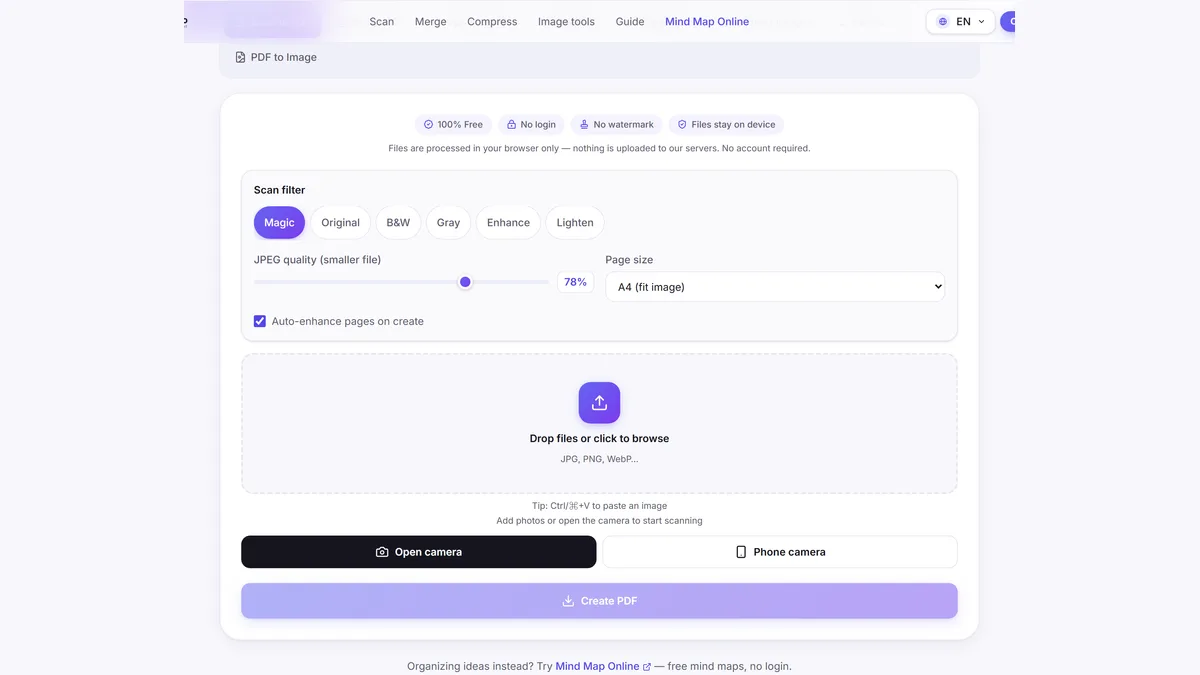
1. Capture clear document images
Take sharp photos with good light and minimal blur.
-
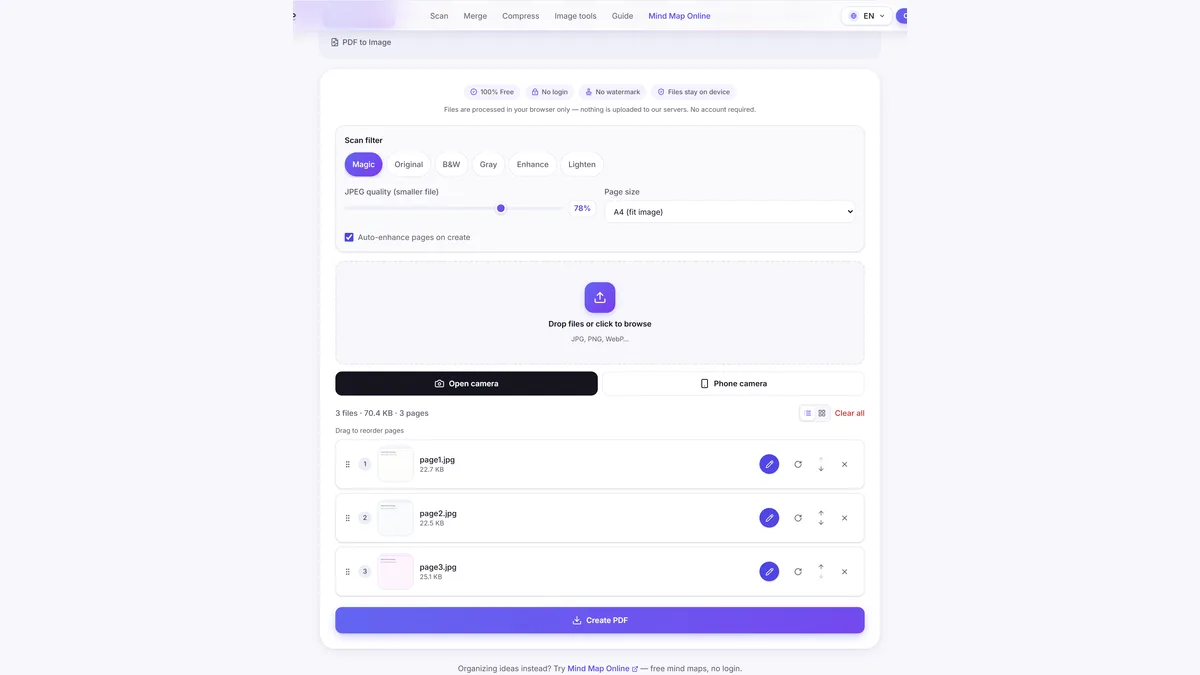
2. Convert images to PDF in ScanTo
Upload pages in Scan to PDF and export one clean file.
-
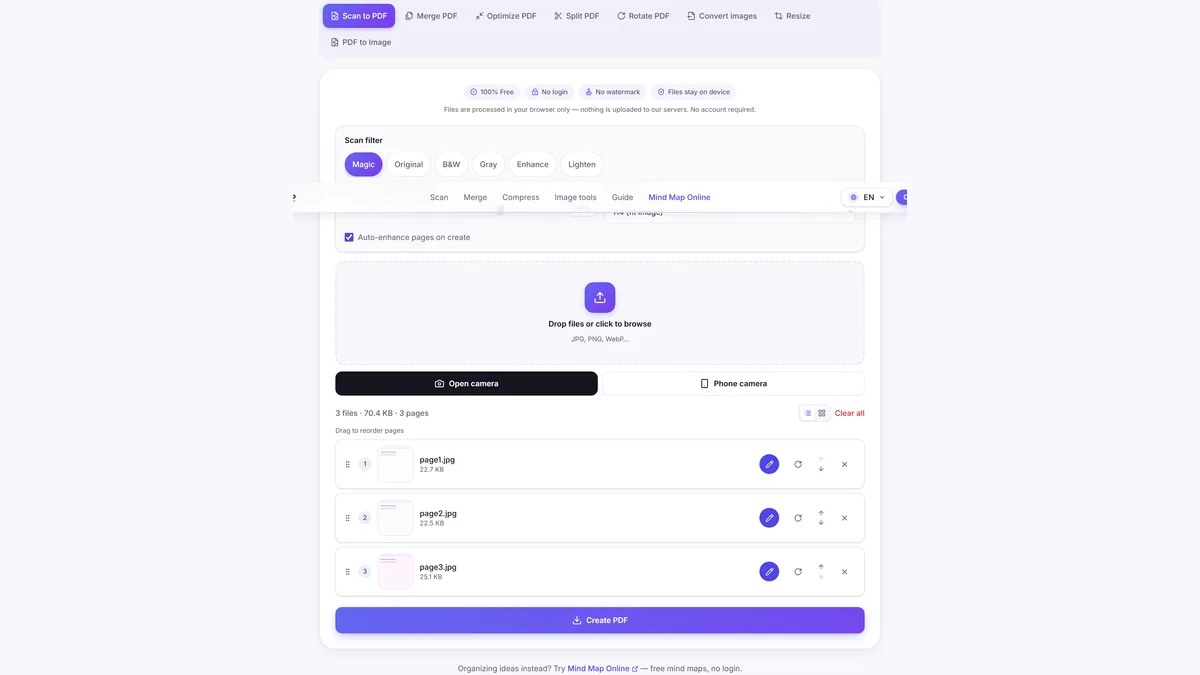
3. Run OCR on exported PDF
Upload the PDF to your preferred OCR provider to extract text.
-
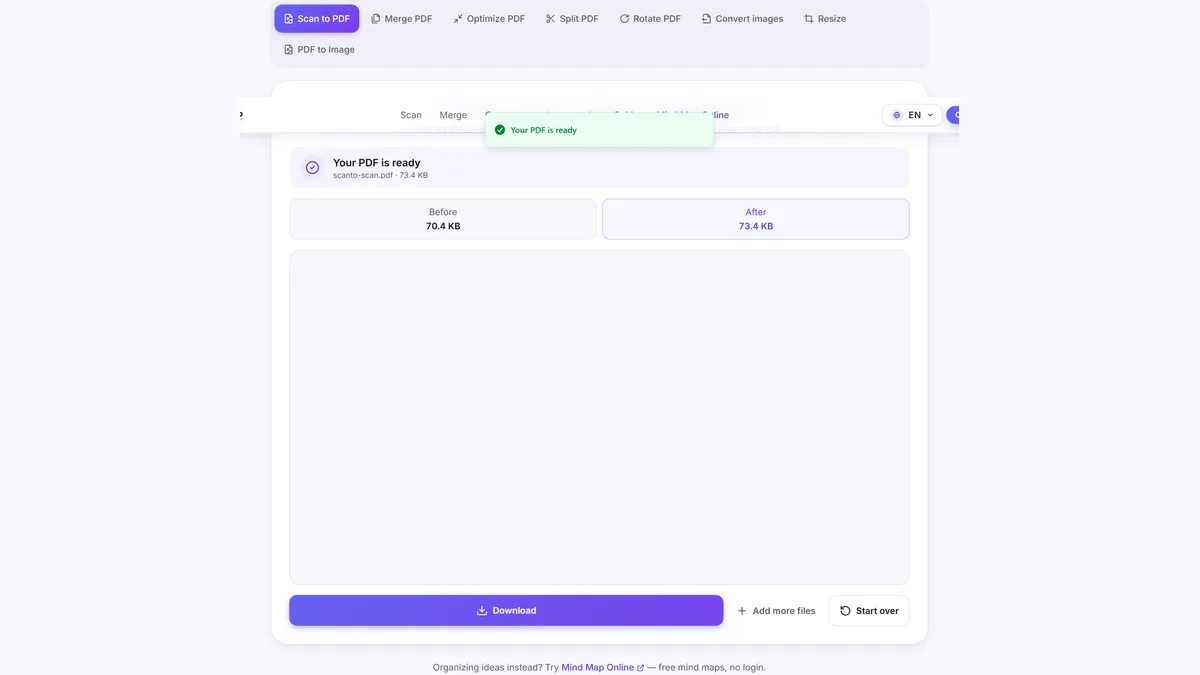
4. Review recognized text
Correct OCR output where needed before final use.
Frequently asked questions
How do I convert a scan to text?
Typical workflow: scan pages to PDF first, then run OCR in a text-recognition tool. ScanTo handles the first step quickly in your browser.
Can ScanTo convert scans to editable text directly?
Not yet. ScanTo currently focuses on scan-to-PDF, merge, and optimization workflows. You can export PDF from ScanTo and apply OCR in a dedicated tool.
Is scan to text the same as OCR?
Yes. Scan to text usually means OCR (Optical Character Recognition), where image text is recognized as selectable and editable text.
How can I improve OCR accuracy?
Use clear, well-lit photos, keep pages flat, and avoid motion blur. Clean source images improve OCR results significantly.
Related tools
Also free: Mind Map Online — create mind maps with no login.