
Scan to computer: simple browser method
Last updated: August 2026
Quick answer: If your scanner or printer utility is unreliable, you can still scan to computer by taking page photos and converting them to PDF with ScanTo.
This workflow is useful when "HP scan to computer" is disabled, unavailable, or inconsistent after updates.
-
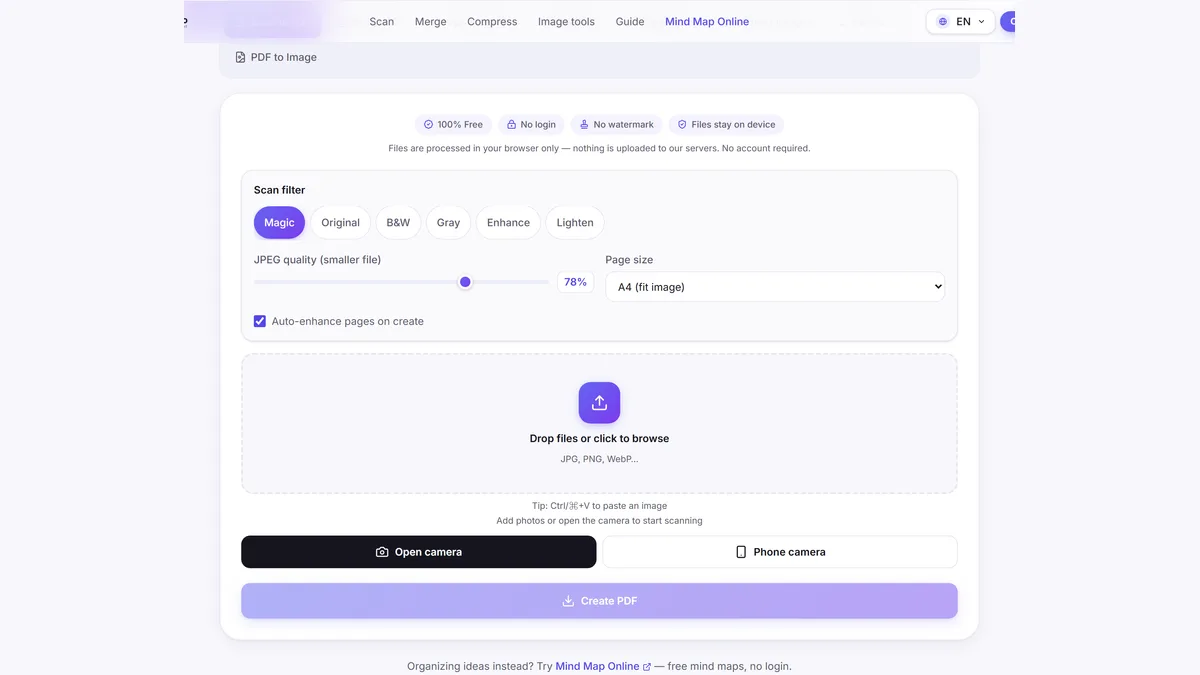
1. Capture each page as an image
Take clear photos of all pages on your phone.
-
2. Transfer images to your computer
Move files via USB, AirDrop, cloud storage, or chat app.
-
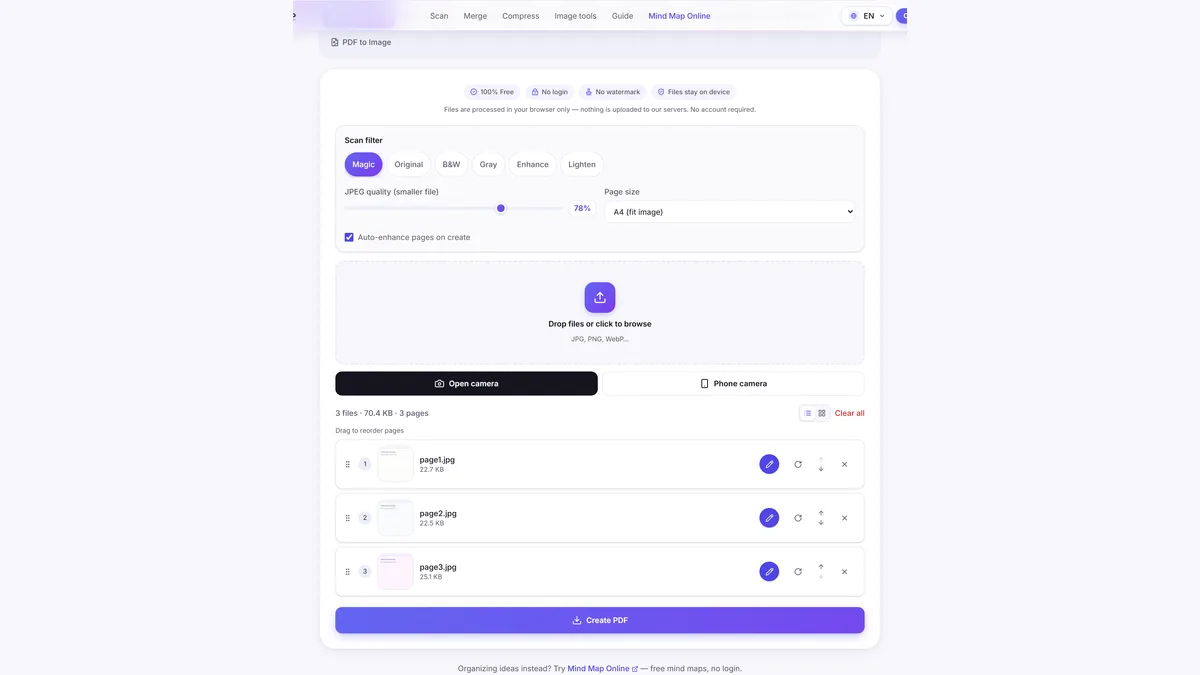
3. Open ScanTo Scan to PDF
Add transferred images in page order on ScanTo.

-
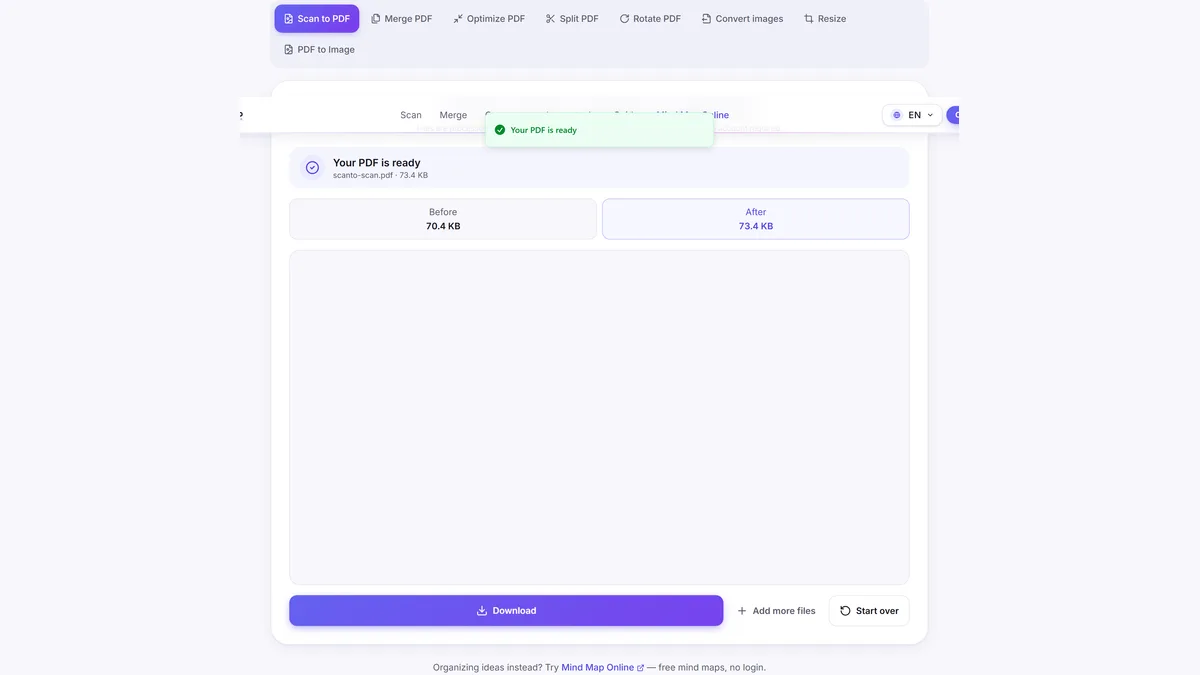
4. Export and save PDF
Download the PDF and keep it on your computer for sharing.
Frequently asked questions
How do I scan to computer without printer software?
Capture pages with your phone, transfer images to your computer, then use ScanTo Scan to PDF in the browser. This works even if printer scan software is unavailable.
HP scan to computer is not working. What can I do?
If HP Scan to Computer fails, you can still complete the task with a browser workflow: take photos, open ScanTo, and generate one PDF locally on your device.
Can I scan directly from my phone to my laptop?
Yes. Share photos from phone to laptop with AirDrop, Nearby Share, or cloud storage, then convert them to PDF on your laptop with ScanTo.
Does ScanTo upload my files?
No. Processing happens in your browser and files stay on your device.
Related tools
Also free: Mind Map Online — create mind maps with no login.