
Scan to PDF on Android
Last updated: August 2026
Quick answer: On Android, capture document photos, open ScanTo in your browser, upload pages in Scan to PDF, and download a single PDF file.
For very strict upload limits, use Compress PDF after export.
-
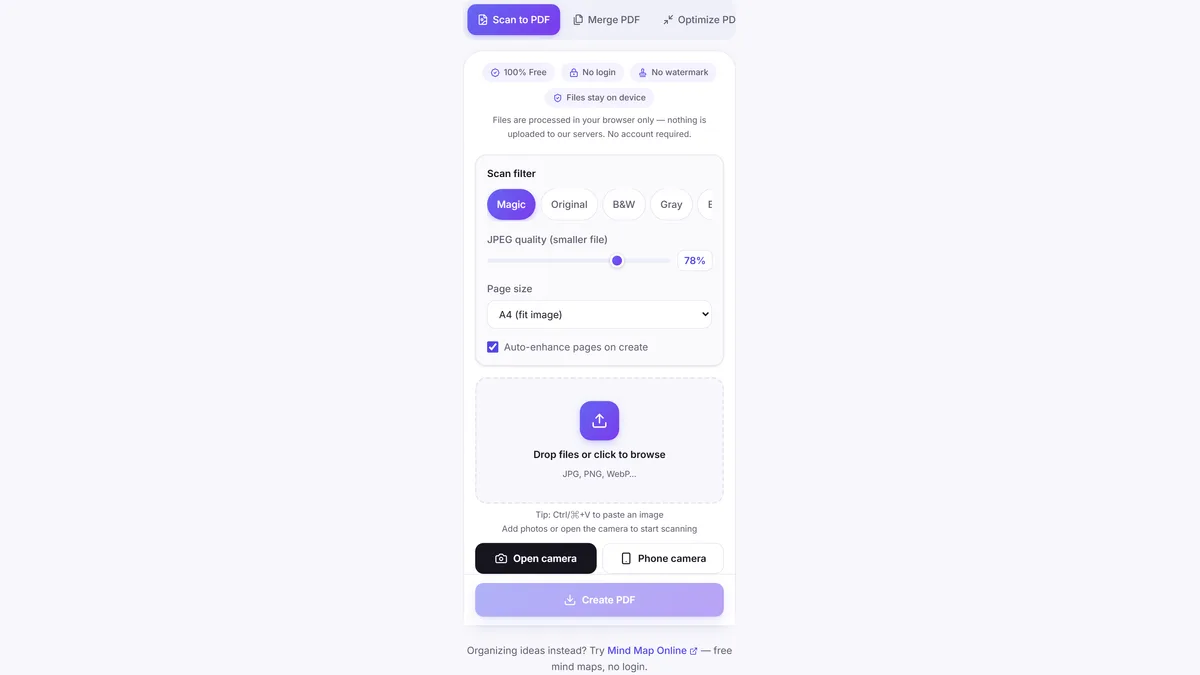
1. Capture document photos
Take clear photos of each page using your Android camera.
-
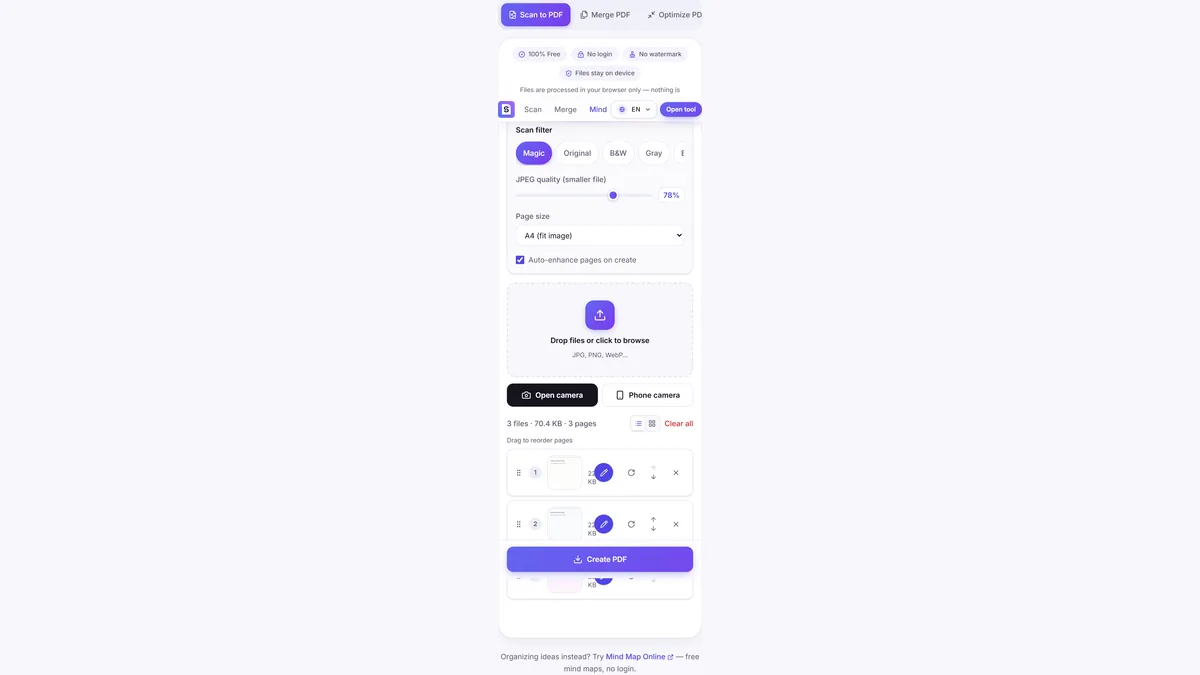
2. Open ScanTo in browser
Open ScanTo in Chrome or Edge and choose Scan to PDF.
-
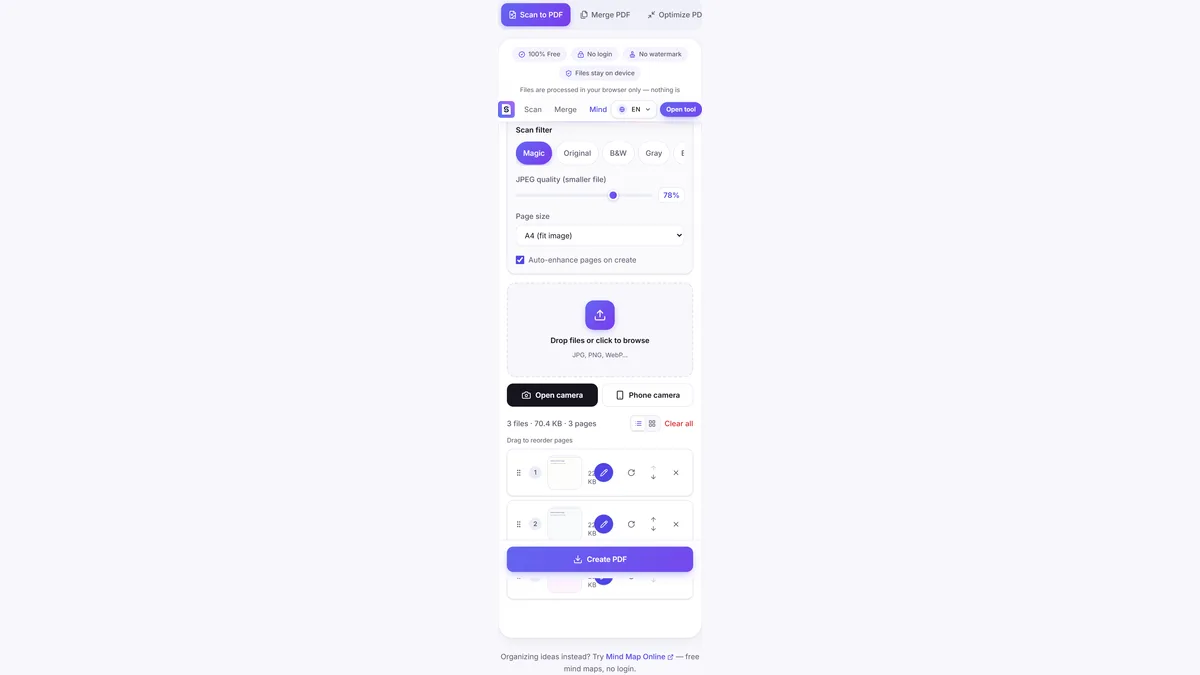
3. Upload pages and set quality
Add images in order and tune quality for your size target.
-
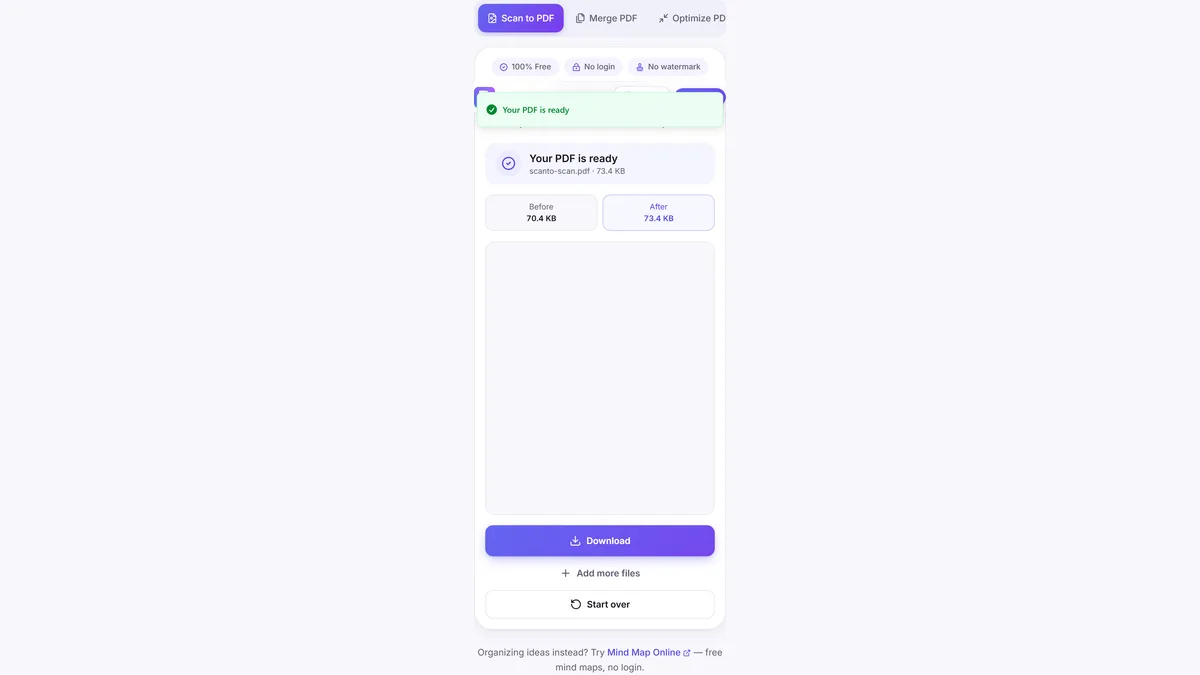
4. Download PDF file
Export the final PDF and share or upload it.
Frequently asked questions
How do I scan to PDF on Android?
Take photos of each page, open ScanTo in Chrome on Android, upload images in Scan to PDF, and download one PDF file.
Can I create a multi-page PDF on Android?
Yes. Add multiple images in order and ScanTo will generate a combined PDF.
Do I need an Android app install?
No. ScanTo runs in the browser, so you can use it directly without installing an app.
How can I reduce PDF size before uploading forms?
Lower quality in Scan to PDF, then optionally use Compress PDF for additional reduction.
Related tools
Also free: Mind Map Online — create mind maps with no login.